How Browsers Turn HTML into Pixels — The Critical Rendering Path
Understand the browser rendering pipeline, critical path delays, layout thrashing, render-blocking scripts, and Core Web Vitals fixes.
Why this matters
Your marketing team adds a third-party analytics script to the <head> of your landing page. Lighthouse scores drop from 94 to 61. First Contentful Paint jumps from 0.8 seconds to 2.4 seconds. The script is only 47KB — it shouldn’t matter that much. But it’s loaded synchronously, and it blocks the HTML parser for 1,600 milliseconds while it downloads and executes.
This is the critical rendering path problem. The browser doesn’t simply read your HTML and display it. It runs a complex, multi-stage pipeline — parsing, tree construction, layout calculation, painting, and compositing — and any stage can become a bottleneck.
A single synchronous <script> tag stops the HTML parser cold. A CSS animation on width instead of transform triggers full layout recalculation 60 times per second. Reading offsetHeight inside a loop forces the browser to synchronously compute layout between every DOM write.
Understanding this pipeline isn’t academic. It’s the difference between a page that feels instant and one that janks, stutters, and loses users. Google’s Core Web Vitals — LCP, FID, CLS — are all direct measurements of how well your code interacts with the rendering pipeline.
Practical note Rendering issues rarely come from one huge mistake. They usually come from several small blockers stacked together: one sync script, one forced layout, one late image dimension.
The mental model
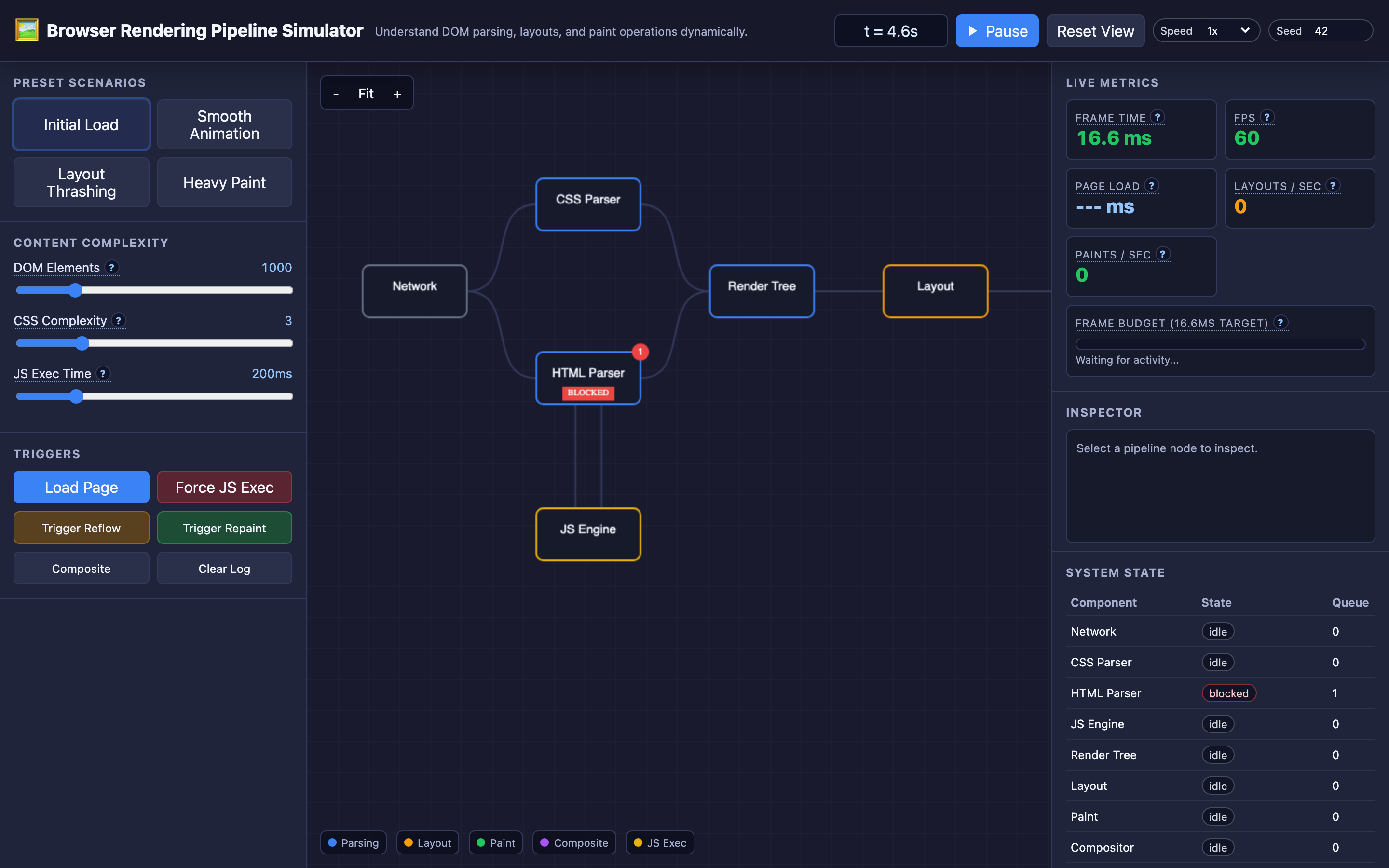
The browser rendering pipeline has five sequential stages, each feeding the next:
1. HTML Parsing → DOM Construction. The browser reads your HTML byte-by-byte, tokenizes it, and builds the Document Object Model — a tree of nodes representing every element. When the parser encounters a <script> tag without async or defer, it stops parsing entirely, fetches the script, and executes it. This is main thread blocking — nothing else renders until the script completes.
2. CSS Parsing → CSSOM Construction. Simultaneously (when not blocked), the browser parses CSS stylesheets into the CSS Object Model. The CSSOM must be fully constructed before the render tree can be built because any CSS rule might affect any element. This is why CSS is render-blocking by default.
3. Render Tree Construction. The browser combines the DOM and CSSOM into a render tree. Elements with display: none are excluded entirely. Pseudo-elements like ::before are added. The render tree contains only the nodes that will actually appear on screen, with their computed styles attached.
4. Layout (Reflow). The browser calculates the exact position and size of every element in the render tree — x/y coordinates, width, height, margins, padding. This is the most CPU-intensive stage. Changing one element’s width can cascade to affect the layout of every sibling and descendant. The browser walks the entire render tree to compute geometry.
5. Paint & Composite. Paint fills in the actual pixels — text rendering, colors, borders, shadows, images. The compositor then takes painted layers and draws them to the screen.
When elements are on their own compositor layer (triggered by will-change: transform, transform: translateZ(0), or opacity animations), the GPU handles compositing without touching the main thread at all.
The key insight: a reflow always triggers a repaint and a composite, but a composite does NOT trigger a reflow. This cascade is why CSS transform animations are so much faster than width animations.
Decisions that matter
DOM Size (element count): A page with 500 DOM nodes lays out in under 1ms. A page with 5,000 nodes takes 8–15ms. Beyond 10,000 nodes, layout alone can exceed 16ms — the budget for a single frame at 60fps. React virtual DOM diffing also scales with DOM size, compounding the problem.
CSS Complexity (selector depth, shadows, gradients): Simple selectors (className) resolve in microseconds. Complex selectors (div > ul li:nth-child(3n+1) a:hover) force the browser to traverse the DOM tree for every matching element. Box shadows with large blur radii (e.g., box-shadow: 0 0 50px rgba(0,0,0,0.5)) are particularly expensive during paint because the browser must calculate Gaussian blur for every affected pixel.
Script Loading Strategy (sync, async, defer): Synchronous scripts in <head> block the parser completely. async scripts download in parallel and execute as soon as available (still blocks parser during execution). defer scripts download in parallel and execute only after parsing completes — the safest option for non-critical scripts.
Animation Property (transform vs. width/margin): Animating transform or opacity runs entirely on the compositor thread (GPU). Animating width, height, margin, top, or left triggers layout → paint → composite on every frame. At 60fps, that’s 16.67ms budget per frame — and a full layout reflow on a complex page can easily take 20ms+, causing visible jank.
Layer Promotion (will-change, translateZ): Promoting elements to their own compositor layer lets the GPU animate them independently. But each layer consumes GPU memory (typically the element’s dimensions × 4 bytes RGBA). Promoting 50 elements at 500×500px each uses ~50MB of GPU memory. Over-promotion causes memory pressure and can actually slow rendering.
Warning Animating
width,height,margin, ortop/lefttriggers a full layout → paint → composite cycle on every frame. Always prefertransformandopacityfor animations to stay on the compositor thread.
Where it breaks: Layout Thrashing
The failure mode: A JavaScript function reads element.offsetHeight for 200 list items inside a loop, and between reads it modifies each element’s style.height. Each read forces the browser to synchronously flush pending layout changes to return an accurate value. The browser ends up recalculating layout 200 times in a single frame instead of once.
// BAD: Forces 200 synchronous layouts (layout thrashing)
items.forEach(item => {
  const height = item.offsetHeight;      // READ → forces layout
  item.style.height = height * 1.2 + 'px'; // WRITE → invalidates layout
});
What you will notice: Chrome DevTools Performance panel shows hundreds of purple “Layout” bars stacked in a single frame. The frame time exceeds 100ms, causing visible stutter.
The “Forced reflow” warning appears in the console. Layout duration in the Performance summary shows 80%+ of frame time.
What I would do: Batch all reads first, then batch all writes. Or use requestAnimationFrame to defer writes to the next frame:
// GOOD: Batch reads, then batch writes
const heights = items.map(item => item.offsetHeight); // all READs
items.forEach((item, i) => {
  item.style.height = heights[i] * 1.2 + 'px';        // all WRITEs
});
Libraries like FastDOM automate this read/write batching pattern.
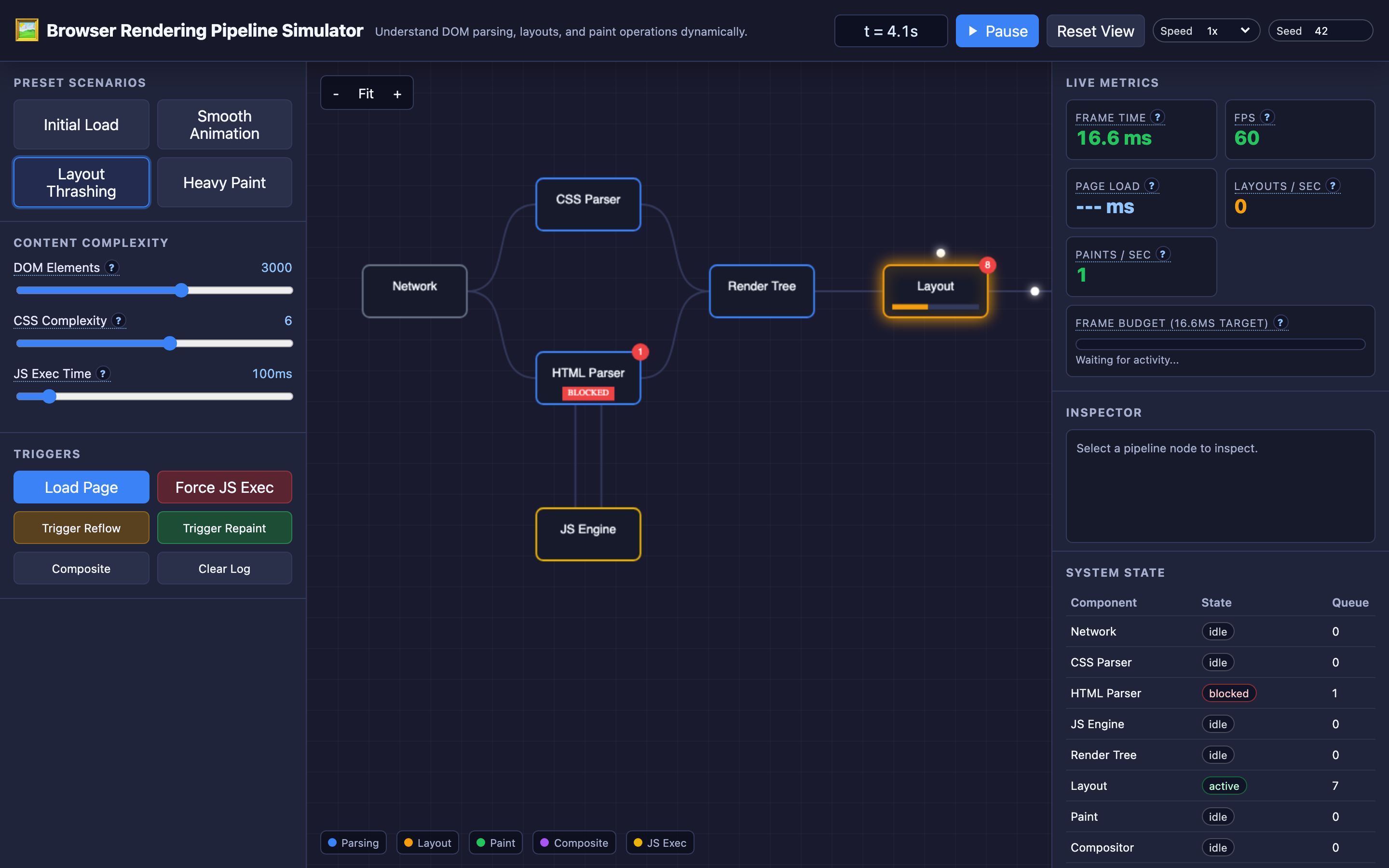
Hint The interactive demo’s “Layout Thrashing” preset helps reproduce this scenario. Toggle between the batched and un-batched approaches to see the frame time difference in real time.
Where it breaks: Render-Blocking Resources Delaying First Paint
The failure mode: Your page loads three synchronous JavaScript files and two CSS stylesheets in the <head>. The browser must download, parse, and execute all scripts sequentially before it can continue parsing HTML.
The CSS must be fully parsed before any render tree construction. Total blocking time: 2,800ms. Users stare at a white screen for nearly 3 seconds.
What you will notice: Lighthouse reports a high “Render-Blocking Resources” diagnostic. The “First Contentful Paint” metric exceeds 2.5 seconds.
Chrome DevTools Network panel shows a waterfall where scripts download sequentially rather than in parallel. The Performance panel shows a long “Parse HTML” block interrupted by script evaluation gaps.
What I would do: Move non-critical scripts to defer or async. Inline critical CSS (the styles needed for above-the-fold content) directly into the HTML <head>, and load the full stylesheet asynchronously:
<head>
  <!-- Critical CSS inlined -->
  <style>
    .hero { font-size: 2rem; color: #1a1a1a; }
    .nav { display: flex; height: 64px; }
  </style>

  <!-- Full CSS loaded asynchronously -->
  <link rel="preload" href="/styles/main.css" as="style"
        onload="this.onload=null;this.rel='stylesheet'">

  <!-- Scripts deferred -->
  <script defer src="/js/analytics.js"></script>
  <script defer src="/js/app.js"></script>
</head>
Where it breaks: Cumulative Layout Shift from Late-Loading Content
The failure mode: An ad banner loads 1.5 seconds after initial render and pushes the article content down by 250 pixels. An image loads without explicit width and height attributes, causing a 180px layout shift when it arrives.
A web font swaps in after 800ms, changing line heights across the page. CLS score: 0.42 (poor — Google’s threshold is 0.1).
What you will notice: Chrome DevTools “Layout Shifts” in the Performance panel highlight elements that moved. The Web Vitals extension shows CLS accumulating in real time.
Users report accidentally clicking wrong links or buttons because content shifted just as they tapped. Lighthouse flags “Avoid large layout shifts” with specific element culprits.
What I would do: Always set explicit dimensions on images and embeds. Reserve space for dynamic content with CSS aspect-ratio or min-height placeholders. Use font-display: optional or font-display: swap with size-adjusted fallback fonts:
/* Reserve space for ads */
.ad-slot {
  min-height: 250px;
  width: 300px;
  background: #f0f0f0;
}

/* Prevent image layout shifts */
img {
  aspect-ratio: attr(width) / attr(height);
  width: 100%;
  height: auto;
}

/* Size-adjusted font fallback */
@font-face {
  font-family: 'CustomFont';
  src: url('/fonts/custom.woff2') format('woff2');
  font-display: swap;
  size-adjust: 105%;
}
The tradeoff
| Approach | Pros | Cons |
|---|---|---|
| Server-Side Rendering (SSR) | Fast First Contentful Paint (~0.5s), good SEO | Higher server cost, TTFB depends on server load, hydration overhead |
| Client-Side Rendering (CSR) | Simple infrastructure, fast subsequent navigations | Blank page until JS loads and executes, poor FCP (~2–4s) |
| GPU Compositing (layer promotion) | 60fps animations, bypasses main thread entirely | Each layer uses GPU memory (width × height × 4 bytes), over-promotion degrades performance |
defer scripts | Non-blocking parse, executes in order after DOM ready | Scripts execute later — can’t modify DOM during parse |
async scripts | Downloads in parallel, executes ASAP | Execution order not guaranteed, still blocks parser during execution |
| Inline critical CSS | Eliminates render-blocking stylesheet request | Increases HTML size, not cached separately, must be maintained |
will-change CSS property | Pre-promotes elements for smooth animations | Permanent GPU memory allocation even when not animating |
A practical checklist
Step 1: Audit render-blocking resources. Run Lighthouse and check the “Eliminate render-blocking resources” opportunity. Each synchronous <script> or <link rel="stylesheet"> in the <head> adds to blocking time. Move scripts to defer, inline critical CSS, and preload key fonts.
Step 2: Profile a real interaction. Open Chrome DevTools → Performance → Record a user action (scroll, click, animation). Look for long frames (>16ms). Purple bars are Layout (reflow), green bars are Paint. If Layout dominates, you have a reflow problem. If Paint dominates, simplify your CSS (shadows, gradients, filters).
Step 3: Check for layout thrashing. In the Performance panel, enable “Layout Shift Regions” and look for rapid Layout-Layout-Layout sequences. Use performance.mark() and performance.measure() to instrument your JavaScript. Search for DOM property reads (offsetHeight, getBoundingClientRect(), scrollTop) interleaved with style writes.
Step 4: Optimize animations. Replace left/top/width animations with transform: translate() or transform: scale(). Use will-change: transform on elements about to animate, but remove it after animation completes. Use requestAnimationFrame instead of setInterval for JS-driven animations.
Step 5: Measure Core Web Vitals in the field. Lab tools (Lighthouse) show potential issues. Field data from Chrome UX Report (CrUX) shows real user experience. Track LCP < 2.5s, FID < 100ms, and CLS < 0.1. Set up Real User Monitoring (RUM) with the web-vitals library to catch regressions.
Hint Use the interactive demo to compare a
transformanimation (compositor-only, smooth) versus awidthanimation (layout → paint → composite, janky) to see the pipeline difference visually.
Try it yourself
The rendering pipeline is hard to internalize from text alone. You need to see the DOM parse halt when a synchronous script loads. You need to watch a reflow cascade through the layout stage and trigger a repaint.
You need to compare a transform animation (compositor-only, smooth) versus a width animation (layout → paint → composite, janky).
Try the interactive Browser Rendering Pipeline demo to trigger reflows, block the parser, and see exactly which pipeline stages fire for each change — all visualized in real time.